
LedgerBoss provides two scenarios for adding employees, depending on whether the user is already registered.
Adding an employee manually (when the worker is not registered)
- Create a new employee profile
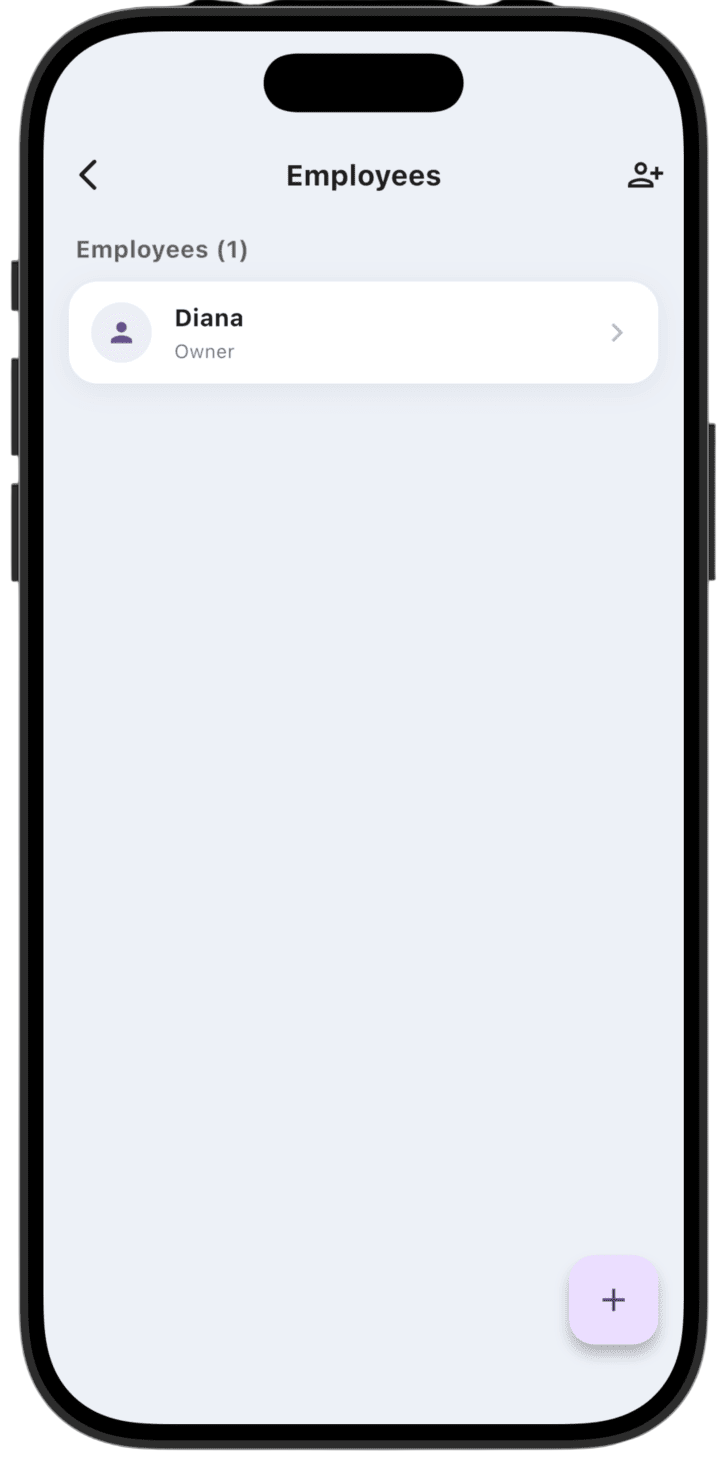
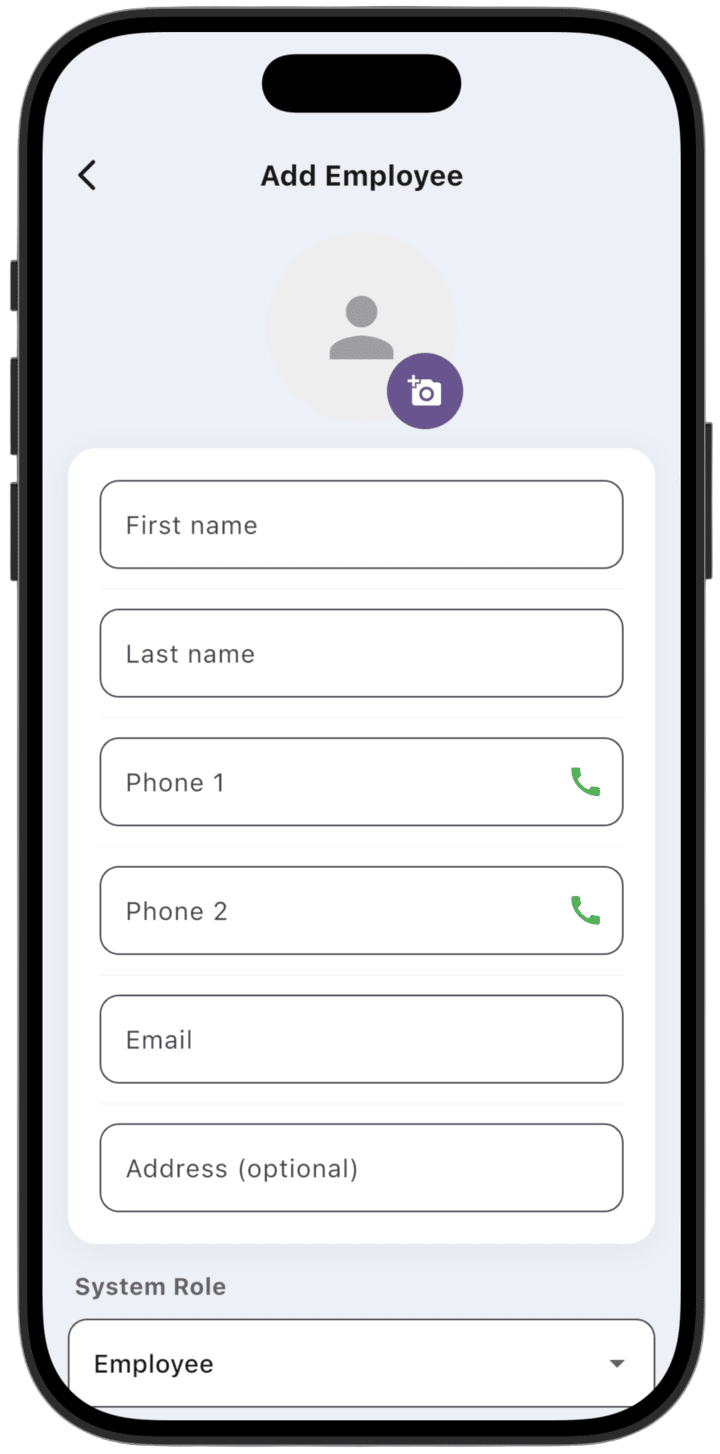
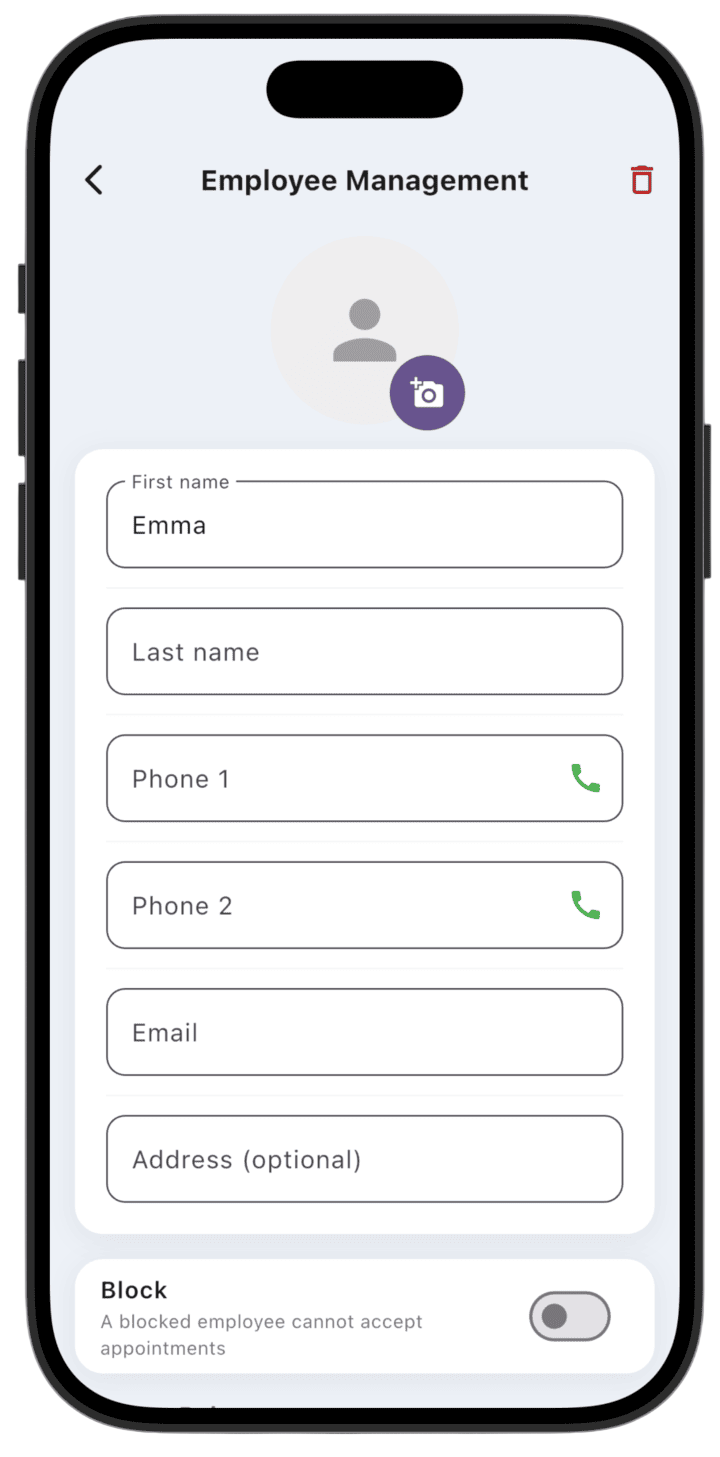
If the employee does not yet have an account in the app, you can create their card manually using the + button at the bottom of the screen.
Fill in the required field: first name. Other fields are optional: last name, contact phone, and email.
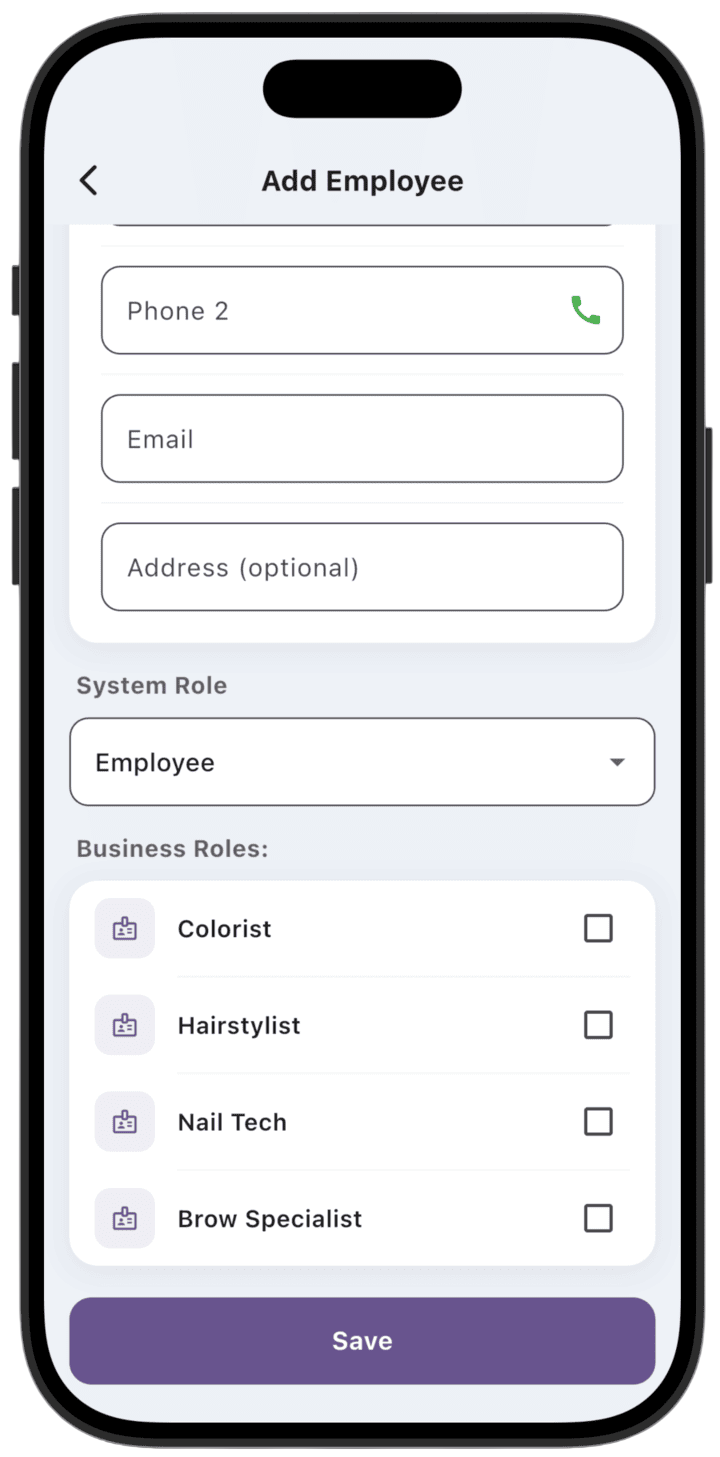
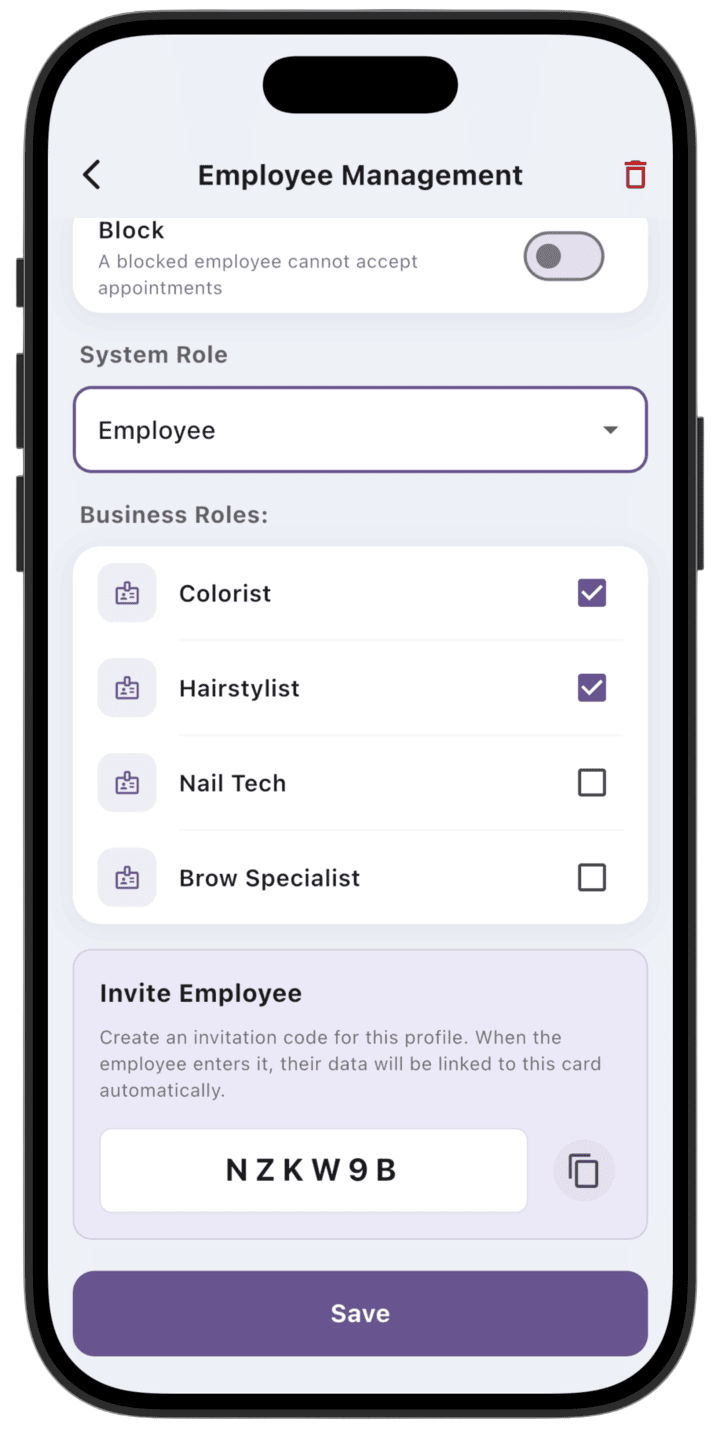
Be sure to set the employee's system role (System Role), for example Employee, and check the business roles (Business Roles) the employee can perform in your business.
An employee may have no business roles — in that case no service appointments will be created for them and they will not appear on the work schedule in the calendar (for example, an accountant or admin).
Tap Save to store the data in the system. - Invite a registered employee
If after manual profile creation the employee registers in the app, you can add them to the business using a special invite code.
Generate this invite code from the employee's profile by tapping Generate invite code at the bottom of the screen and pass the code to the employee.
After the employee enters the invite code, data from their personal profile is automatically merged into their employee profile.
Adding an employee when the worker is already registered
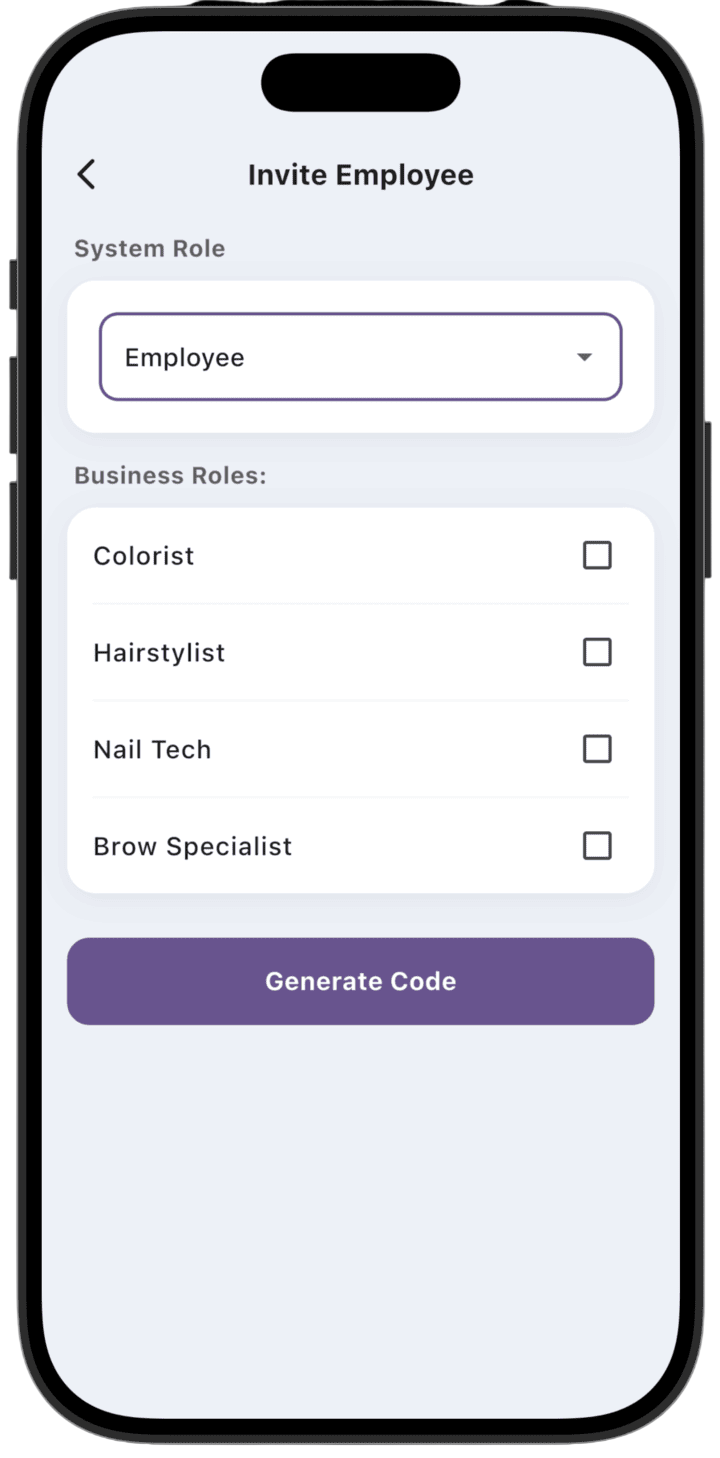
- If the employee is already registered in the app, you can invite them to the business via an invite code created with the 👤+ button at the top of the screen. Pass this code to the employee.
After the employee enters the invite code, their profile automatically appears in your business.