
The Service directory section is used to manage your service catalog. Instructions for creating and configuring a new service are below.
Creating a service card
Open the service directory:
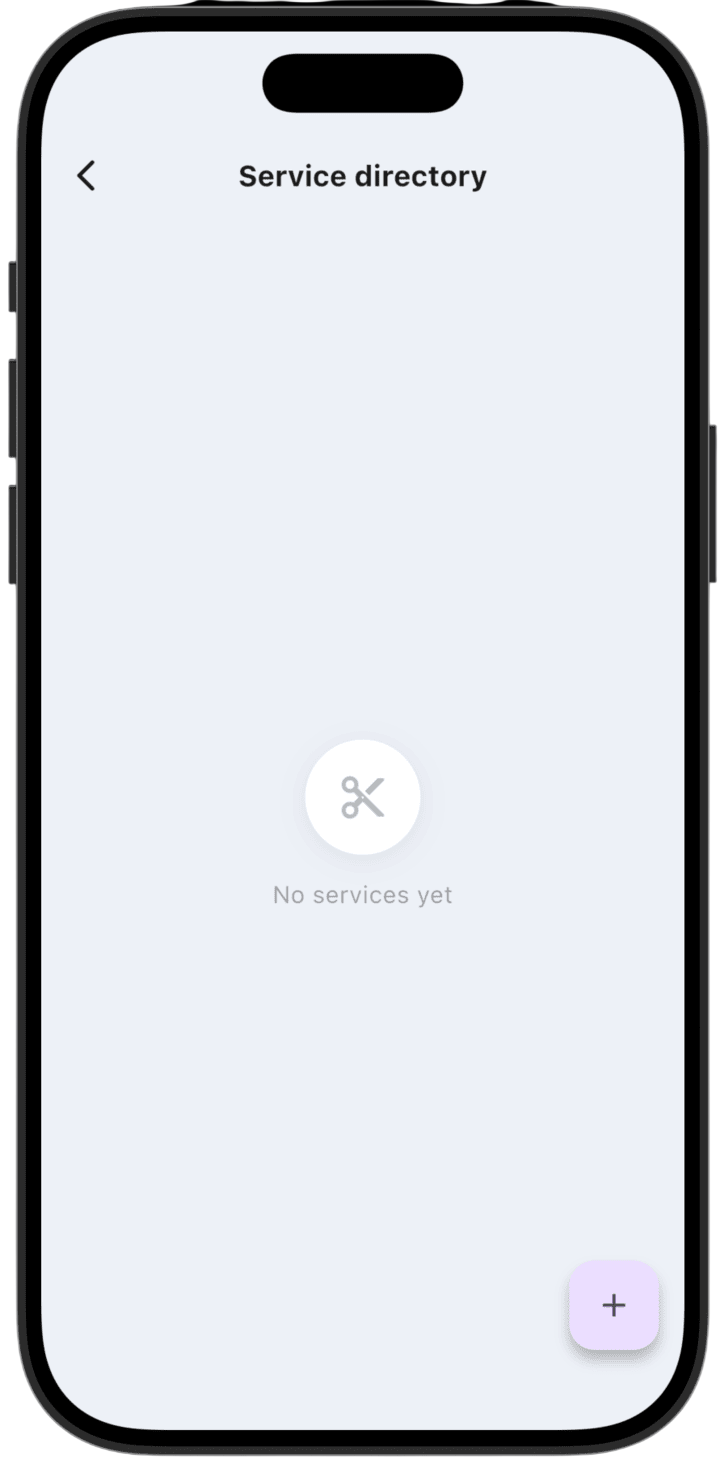
Go to Service directory. If the list is empty, you will see No services yet.
Start creation:
Tap the purple + button in the bottom-right corner to open the new service form.
Fill in service details:
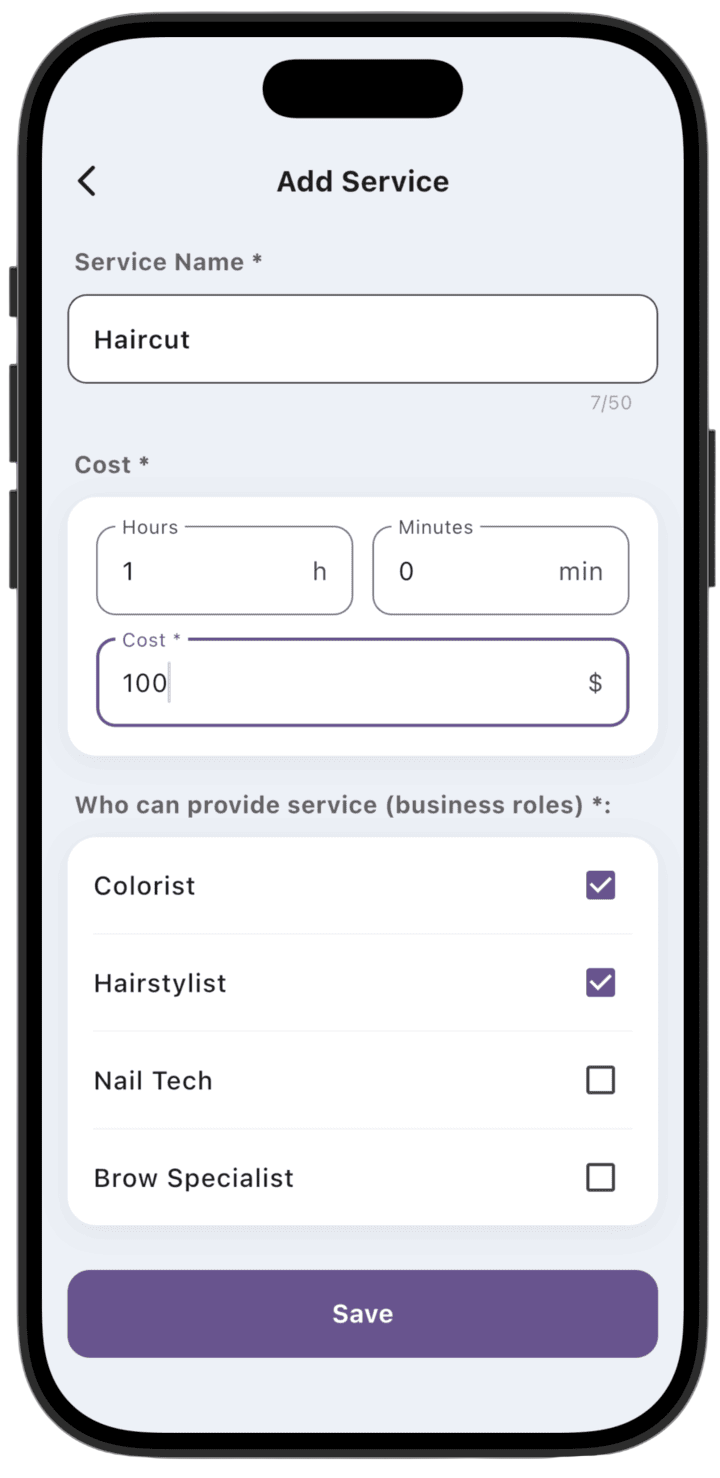
In the creation form, set:
Service Name: enter the exact service name (required).
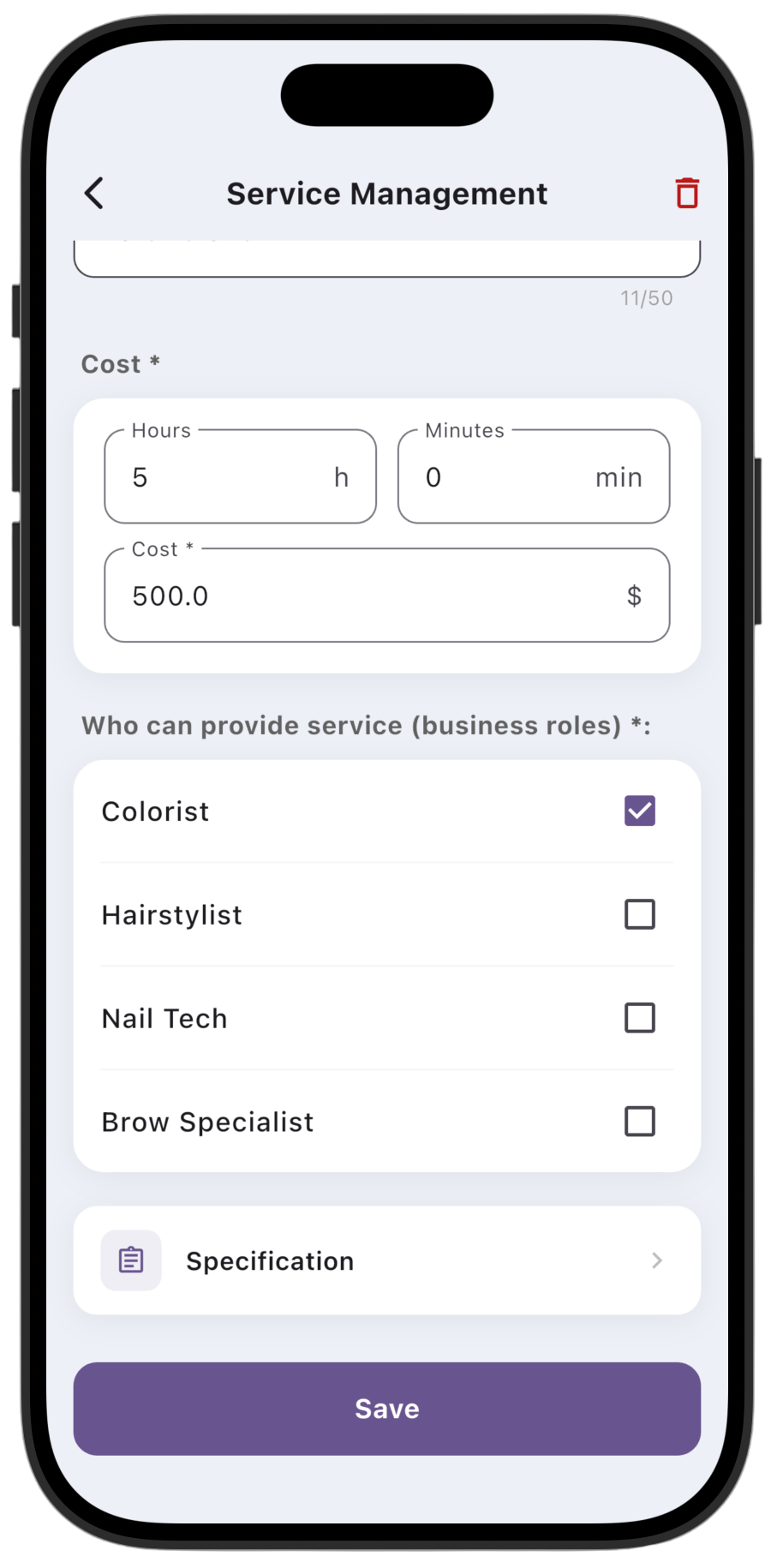
Cost: set planned duration in hours and minutes and the price in the business currency.
Who can provide service (business roles): check the specializations (business roles) whose employees can provide this service.
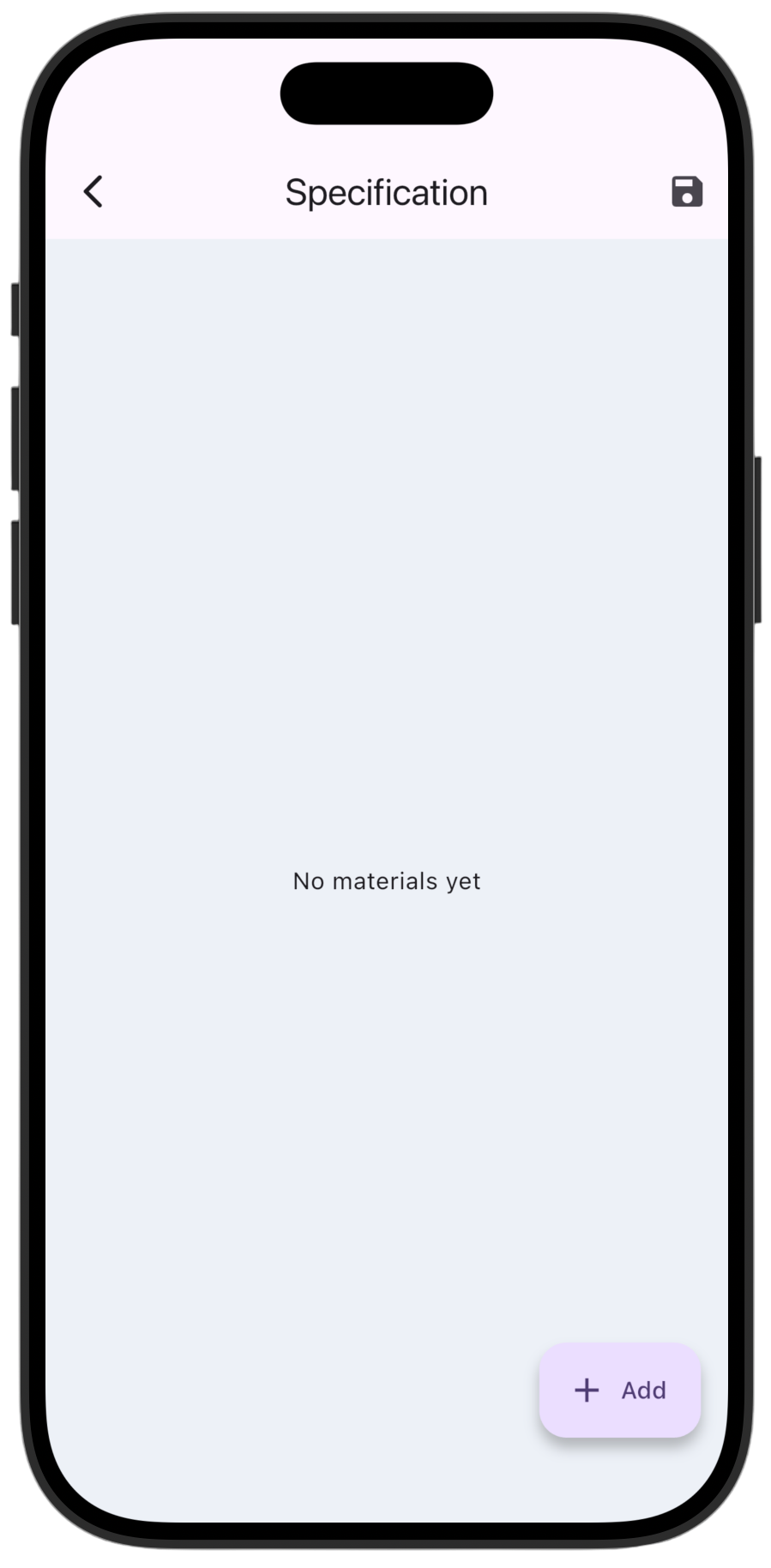
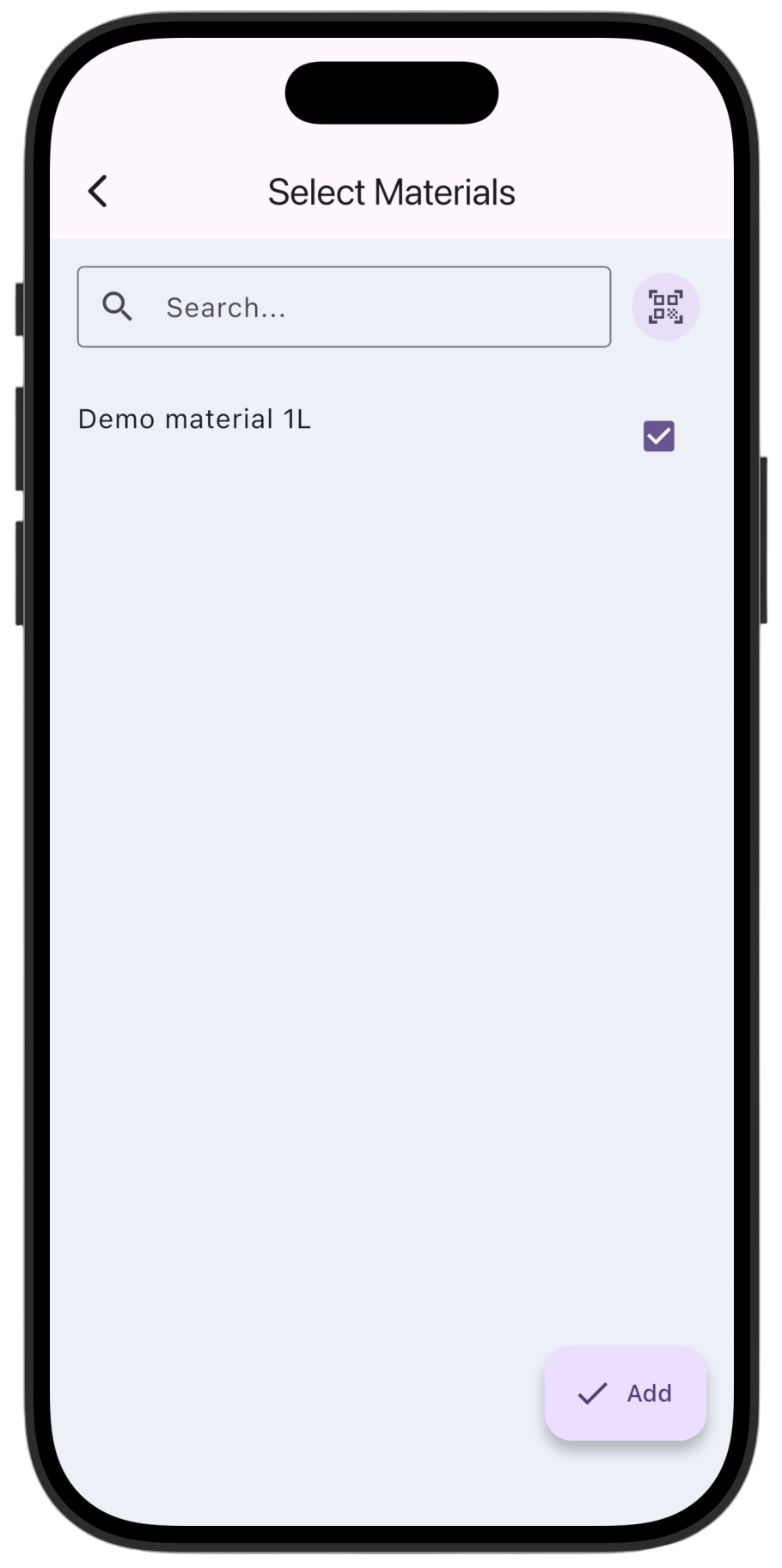
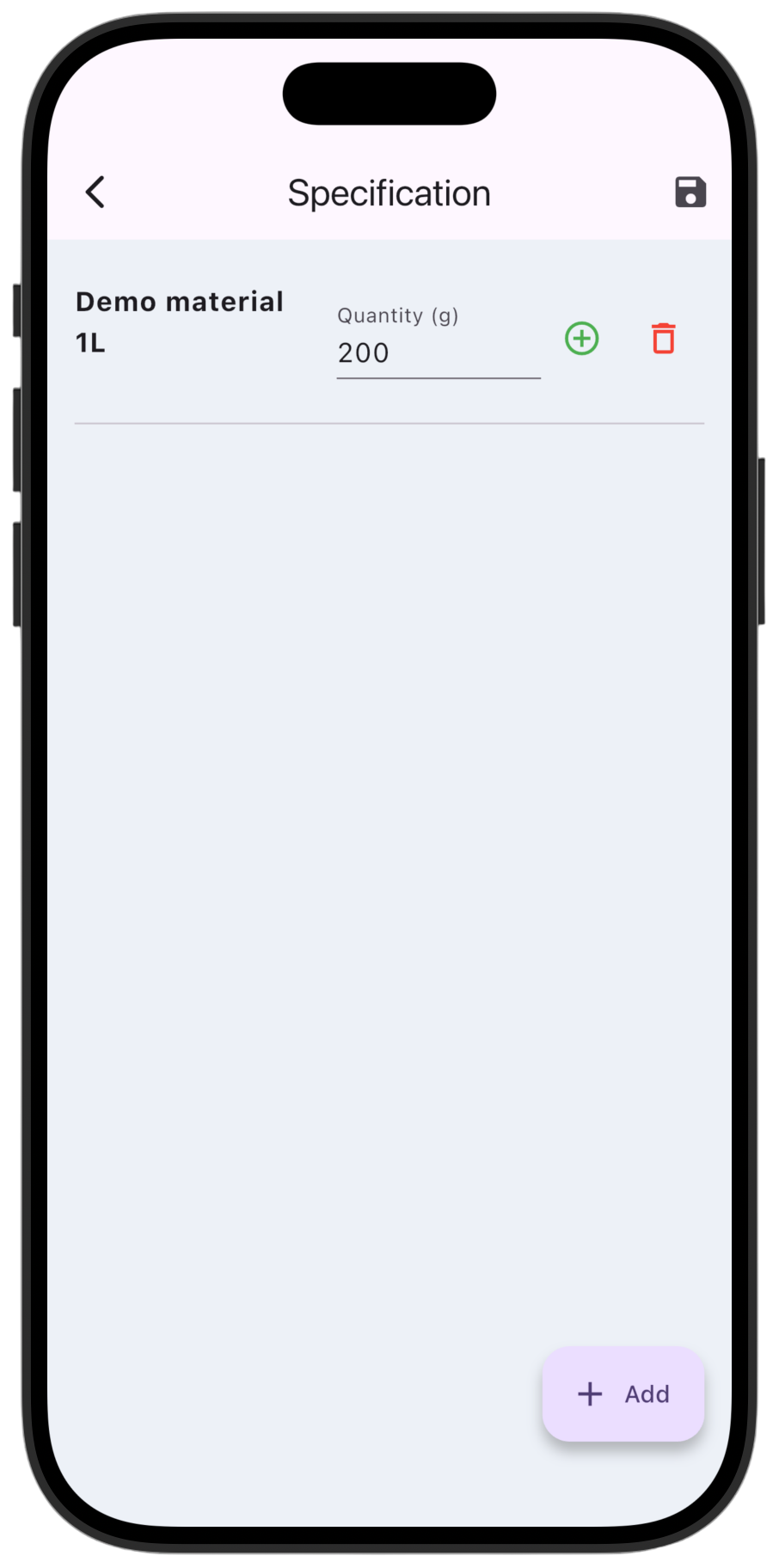
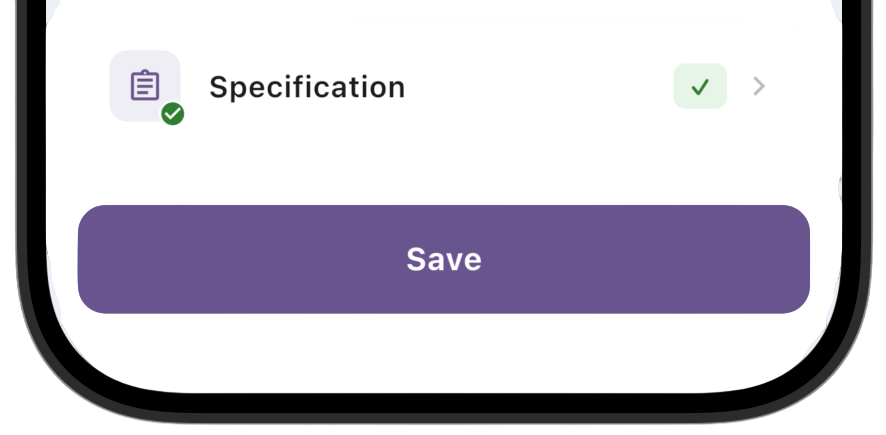
If a fixed set of materials is regularly consumed for this service, you can create a service specification: tap Specification, select materials from the list, tap Add, set consumption norms for each material, and tap save (💾) at the top of the screen.
Save:
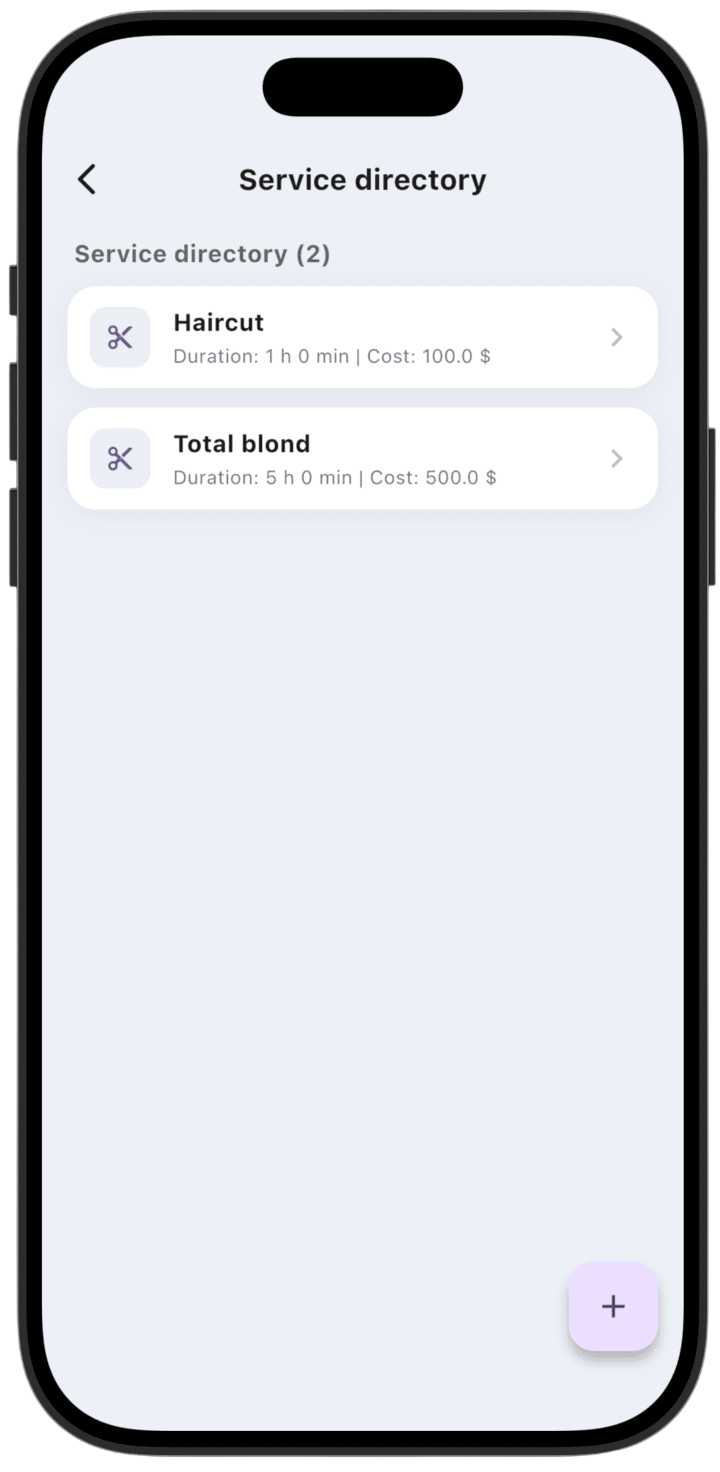
After filling in all fields, tap Save at the bottom of the screen. The service is added to the directory.
Note: fields marked with (*) are required.
Only the business Owner can create services.
You can delete a service using the trash icon at the top of the screen.