
A client books on their own: they pick a service, a professional, and a time, then leave a name and phone number. They do not need a LedgerBoss account.
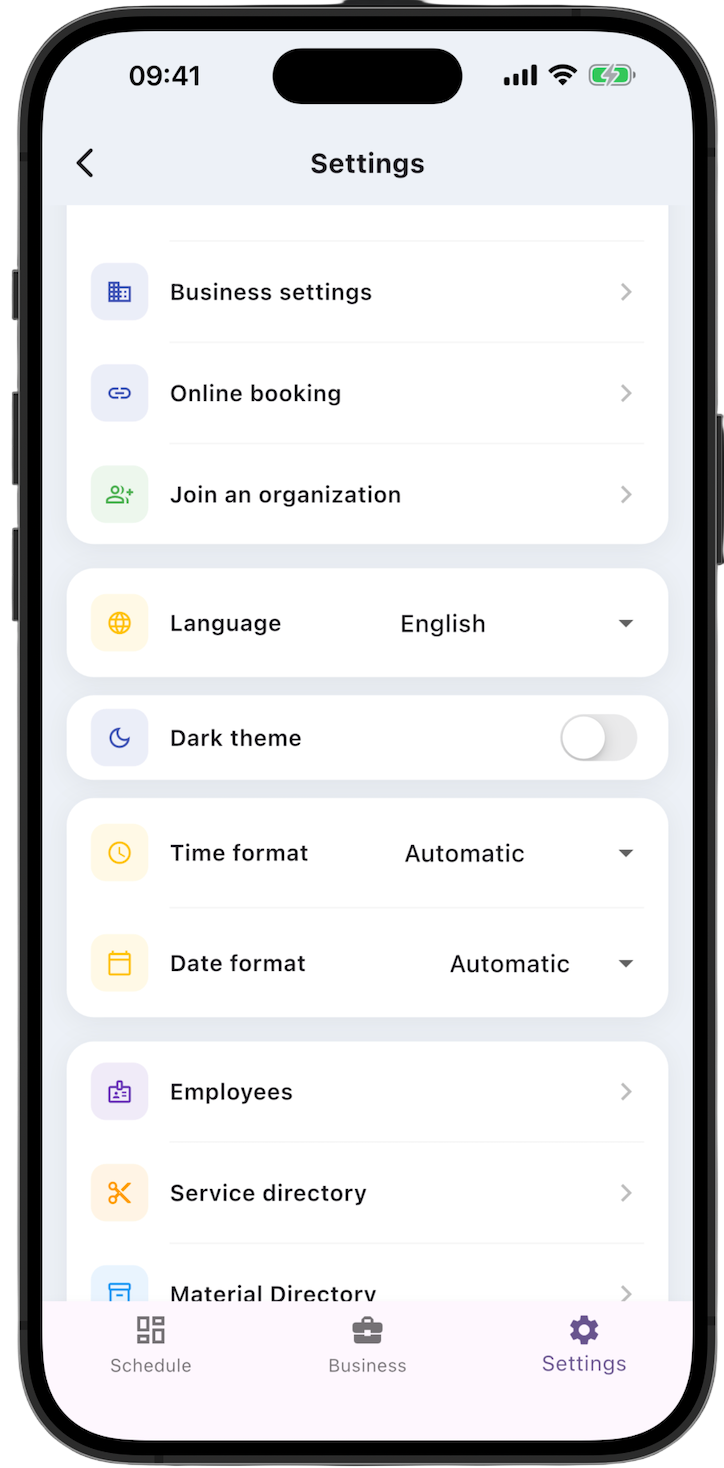
Setup lives in Settings at the bottom of the screen. Online booking needs three items, in this order:
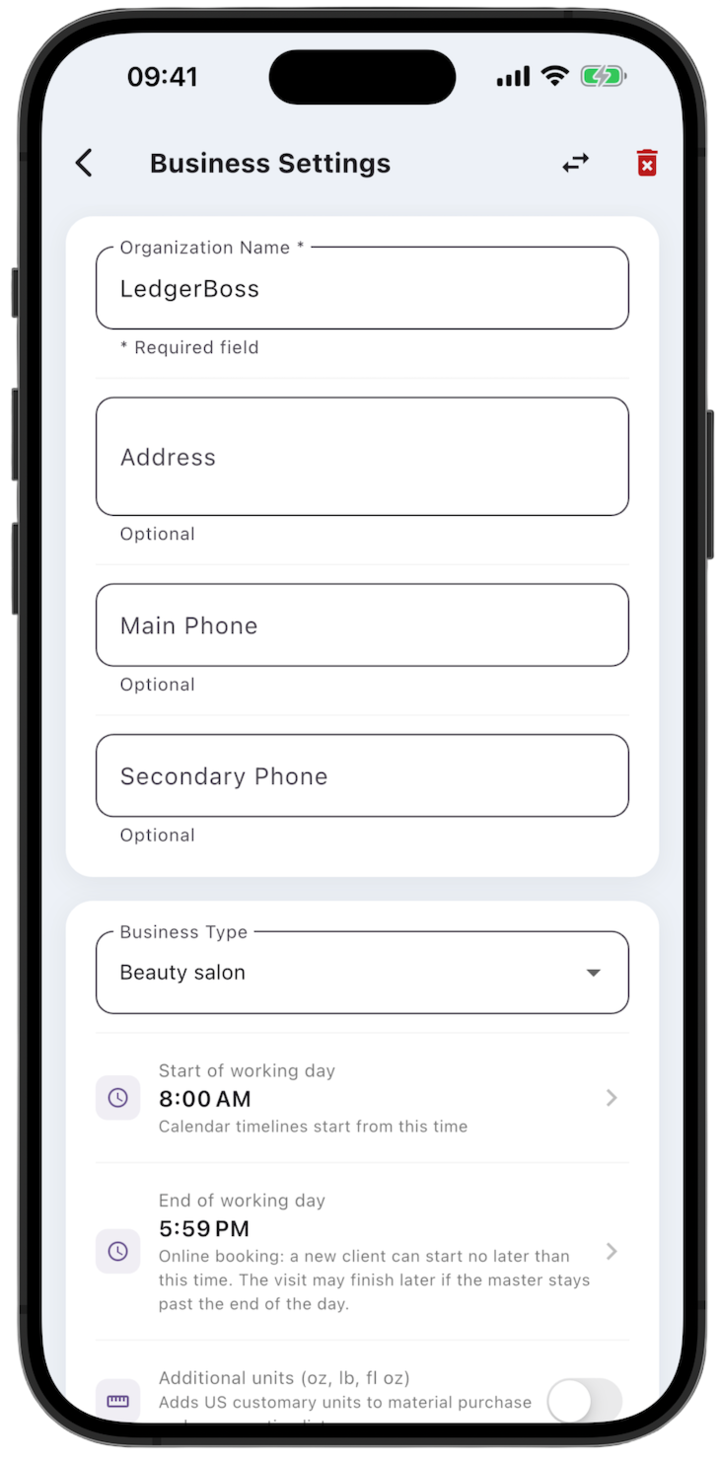
- Business settings — the latest time a client can start a visit.
- Online booking — turn the page on, get the link, and set how it looks.
- Employees — which professionals accept online bookings, and during which hours.
While Enable online booking is off, the public page is unavailable. Employee settings do not affect client booking until it is on.
1. Business settings — end of the working day
Open Settings → Business settings.
End of working day is the latest time a client can start a new booking. The visit may finish later if the professional stays past the end of the day.
Start of working day sets the time the calendar timeline begins. It does not change which online slots are offered.
Tap Save changes after you edit the screen.
2. Online booking — the page clients see
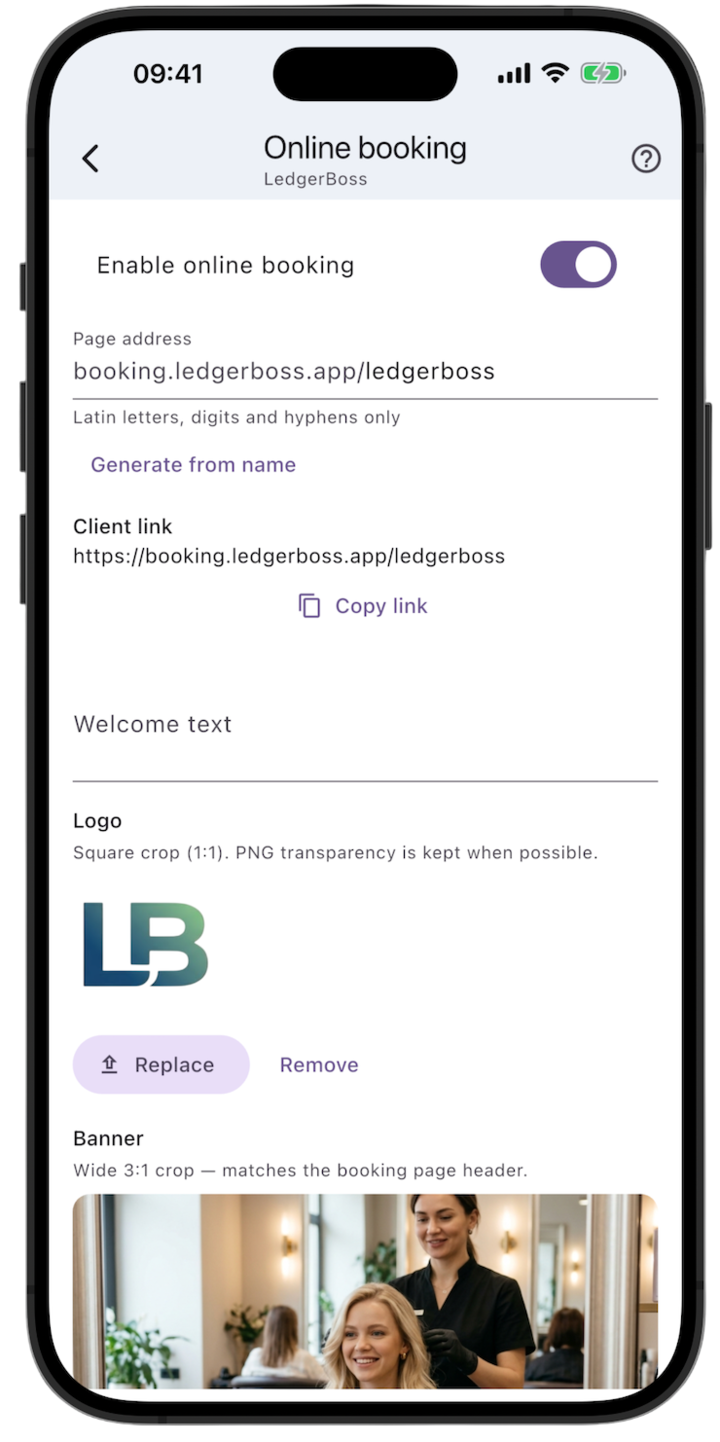
Open Settings → Online booking.
Turn booking on. Enable online booking makes the page available at your link.
Set the address. Page address accepts Latin letters, digits, and hyphens only. Generate from name fills it from the business name. The finished URL is under Client link — tap Copy link. If the address is already taken, pick another one before saving.
Set the look.
- Welcome text — a short note the client sees on the page.
- Logo — a square 1:1 crop. PNG transparency is kept when possible.
- Banner — a wide 3:1 crop for the page header.
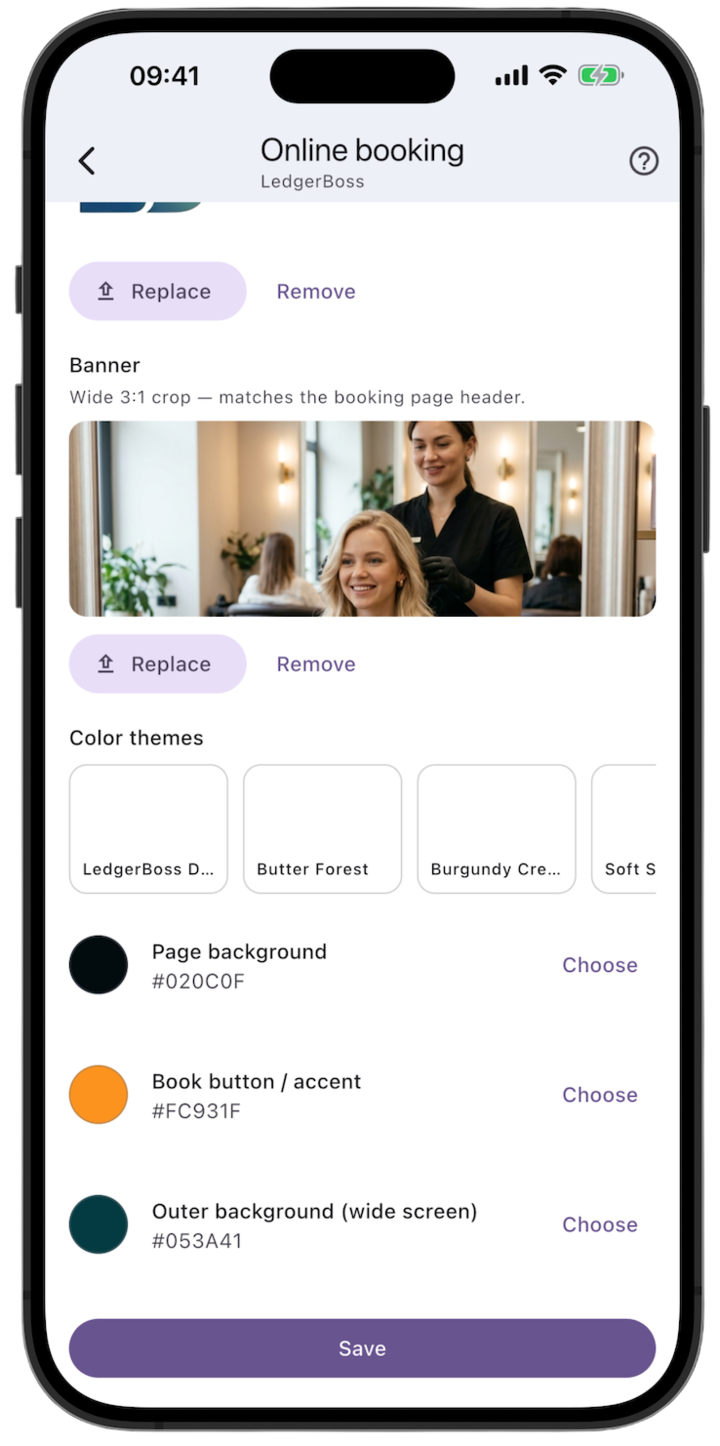
- Replace and Remove sit under the logo and the banner.
Choose colors. Color themes offers ready-made palettes. You can also set three colors yourself:
- Page background — the fill behind the booking form.
- Book button / accent — the booking button and accents.
- Outer background (wide screen) — the area around the page on a wide screen.
Tap Save.
Put the link where clients already look for you: a social profile, your website, a Google listing, a messenger signature, or a QR code at the desk.
3. Employees — who accepts bookings, and when
Open the professional’s card: Settings → Employees.
This block applies only after online booking is turned on in the previous step.
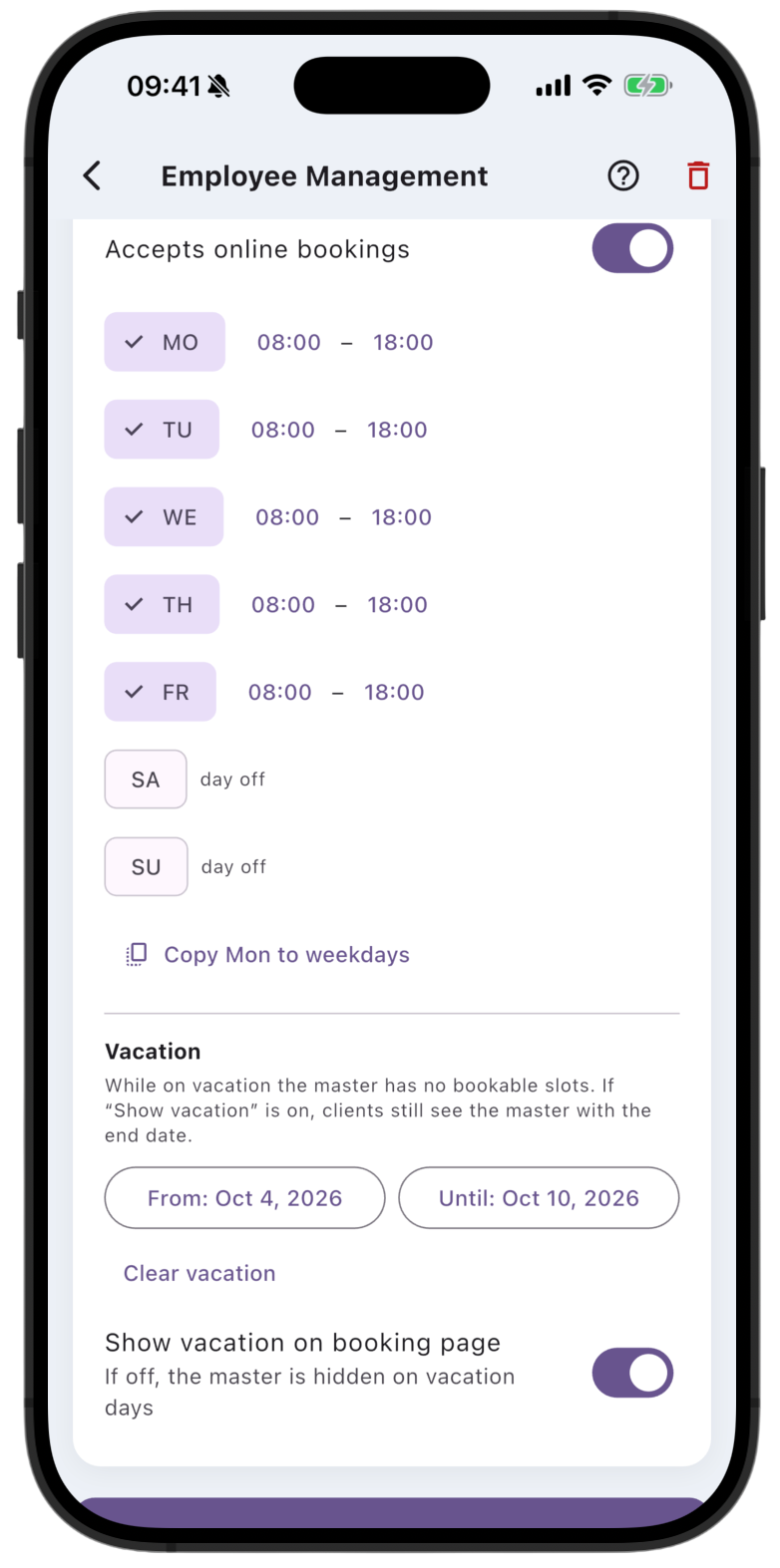
Accepts online bookings. Turn this on. Without it, clients do not see this person’s slots, even if the weekly hours are filled in.
Hours for each day. Every weekday has two times:
- the time on the left is the earliest a service can start;
- the time on the right is how late the professional will stay to finish a service that already started during working hours.
That later time does not let a client book a start after the end of the business day. End of working day in Business settings still decides the latest start.
A day without a check mark is a day off, so it has no slots. Copy Mon to weekdays copies Monday onto the weekdays.
Example. The business day ends at 6:00 PM, the professional’s schedule runs until 7:00 PM, and the service takes one hour. A 6:00 PM slot is available: the visit ends at 7:00 PM. A 6:30 PM slot is not, because that start is already after the end of the working day.
Vacation. While vacation dates are set, there are no bookable slots. Set them with From and Until. To clear the dates, tap the Clear vacation link under the fields. It appears only when a vacation is already set.
- Show vacation on booking page on — the client still sees the professional and the date they return.
- Off — the professional is hidden on vacation days.